User guide
For the person who uses the page. The book control in the page header shows this file.
What the Easy Order Importer does
Your customers send you orders as files. One sends a spreadsheet, another a CSV, another a JSON or XML export from their own system, and a large customer may send EDI. Without this page, somebody reads each file and types the order into Fishbowl by hand.
The Easy Order Importer reads the file and creates the sales orders for you. You open the file, check the orders it found, and import them.
What a mapping is, and why you choose one
Every customer lays their file out differently. One puts the purchase order number in the first column, another puts it in a cell above the table, and an EDI document does not have columns at all.
A mapping records the layout of one customer's file: which column holds the product number, where the quantity comes from, and which customer the order belongs to. Your administrator creates a mapping once per customer, and after that the same mapping reads every file that customer sends.
When you open a file, the page offers the mappings that suit it, and selects one if only a single mapping suits. If a customer sends a file that no mapping suits, ask your administrator to create one. Send them the file as well, because a mapping is built against a real file.
Importing orders from a file
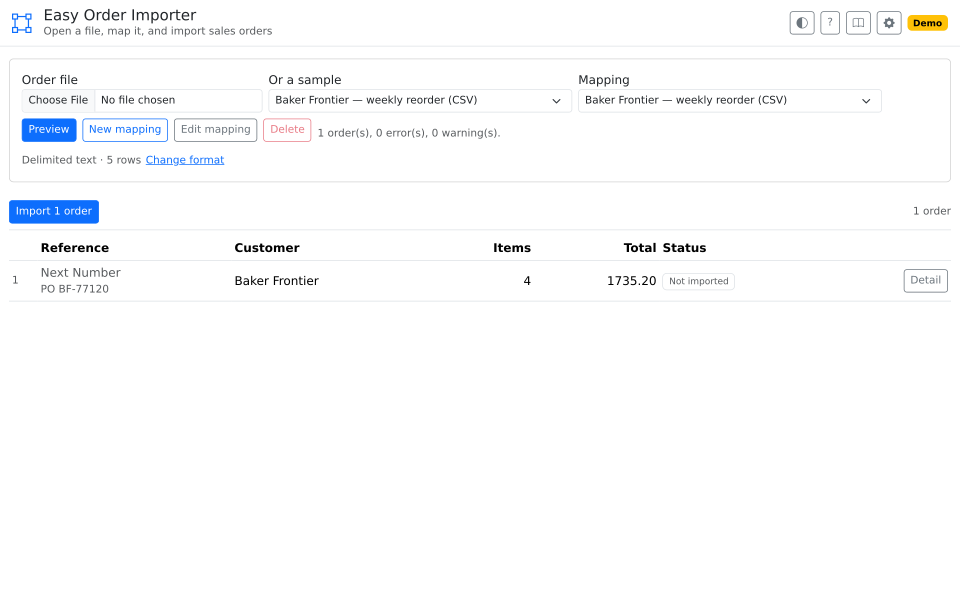
Nothing is written to Fishbowl until you press Import. Opening a file, editing a value and switching mappings are all safe: no sales order exists until you import it.
- Choose the file next to Order file.
- Check the Mapping, and change it if the wrong mapping is selected.
- Read the order list. Each row is one sales order the page will create, and an order that cannot be imported says so on its own row.
- Press Import.
Orders are imported one at a time. If Fishbowl rejects one order, the orders around it are still imported, and the rejected order names the reason on its row.
An import cannot be undone. No control on this page removes a sales order. If you import an order by mistake, void that sales order in Fishbowl.
Checking an order before you import it
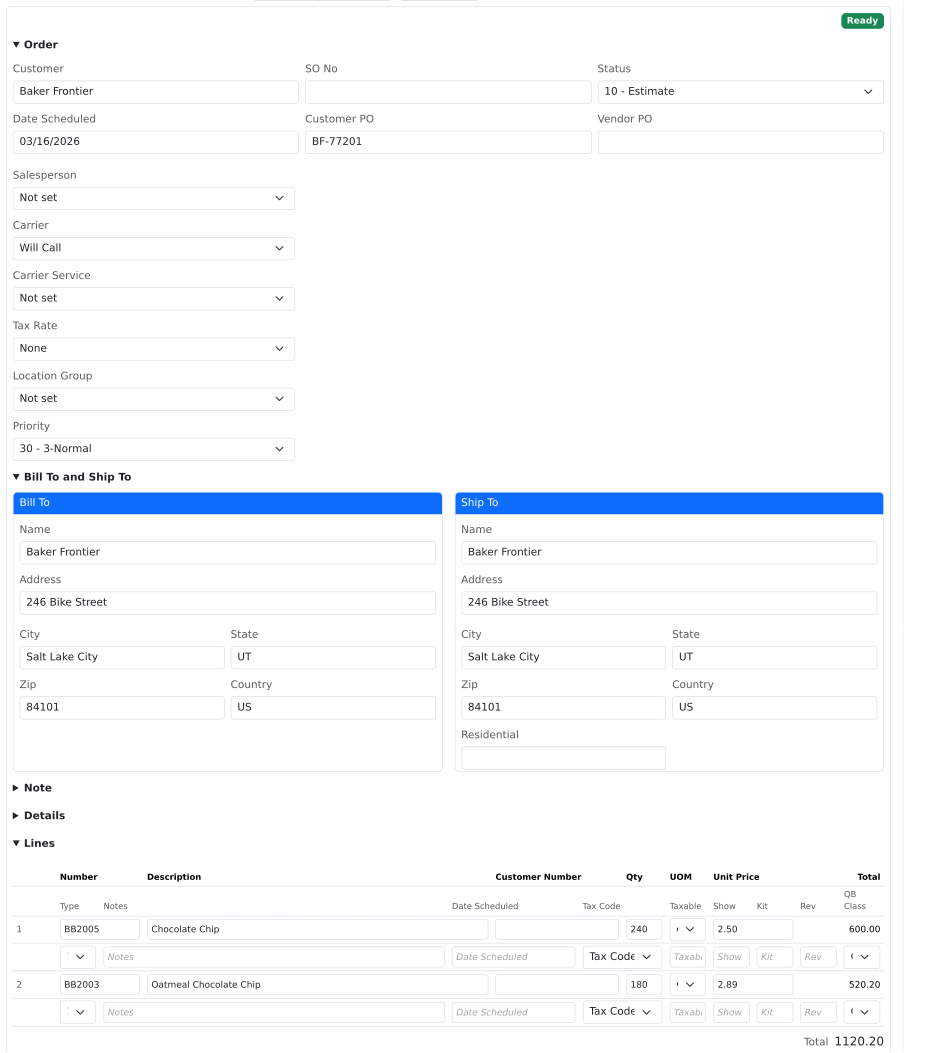
Press Detail on any row to see the whole order laid out the way Fishbowl will hold it: the customer and the dates at the top, the billing and shipping addresses in the middle, and the order lines below them.
Check an order before importing it when the file comes from a new customer, when the total looks wrong, or when the row reports a problem you want to see in context.
You can edit every value in this view, and the line totals and the order total update as you type. Editing a value changes this import only. The mapping is not changed, so the next file from the same customer is read exactly as before.
Importing several orders from one file
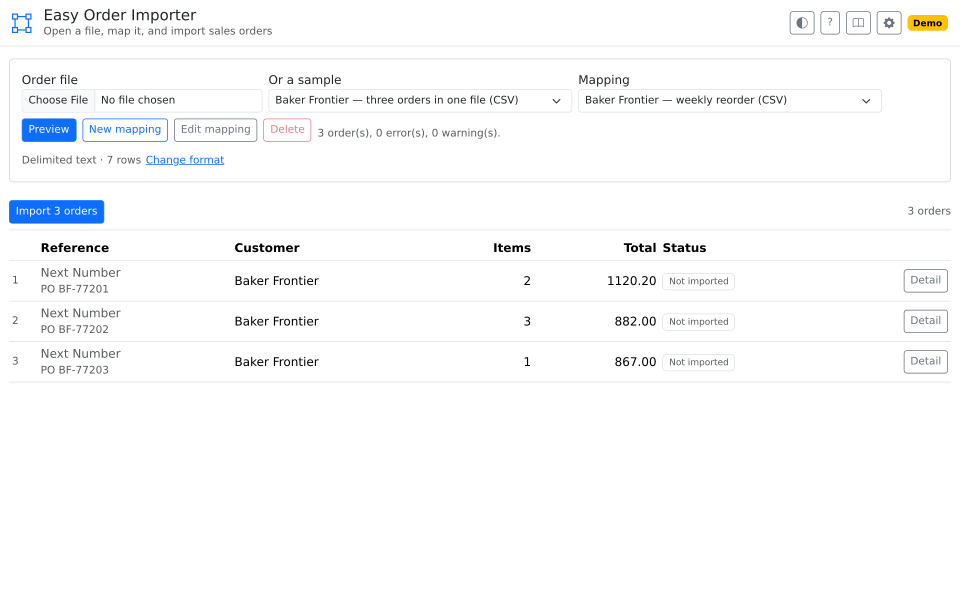
Customers often send a week of orders in one file. The mapping decides where one order ends and the next starts, usually when the purchase order number changes.
For example, a CSV that carries PO 1001 on three rows and PO 1002 on two rows becomes two sales orders: one with three lines, and one with two.
The order list shows each order on its own row with its own total, and imports each order separately.
What to do when an order cannot be imported
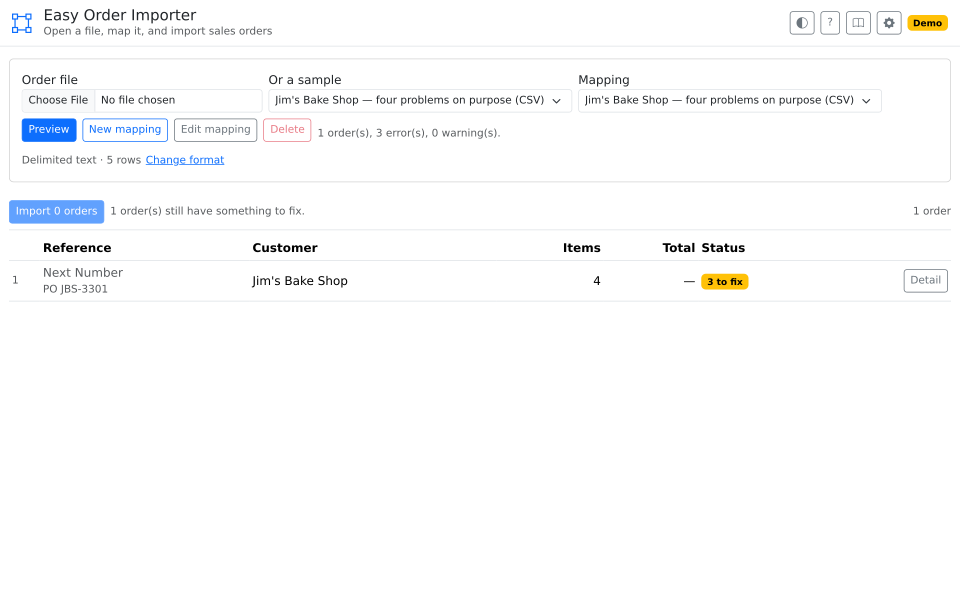
An order that cannot be imported is not sent to Fishbowl, and the Import button counts only the orders that are ready. Every problem names the field and the order line it belongs to, so you can correct the value in the detail view, or fix the underlying record in Fishbowl.
These problems come up most often. Most of them mean the file refers to something Fishbowl does not have.
| The message | What it means, and what to do |
|---|---|
| No active product matches… | Fishbowl has no active product with that number. An inactive product produces the same message as a missing one, so check whether the product exists but has been deactivated. |
| No active customer is named… | The customer name in the file does not match the Fishbowl customer record exactly. |
| No carrier named… | The carrier named in the file is not one this Fishbowl has. Select a carrier from the list instead. |
| Fishbowl reads "…" as 0.00 | The file holds a price that is not a number, and Fishbowl would import that line at zero. Type the correct price, or clear the field to use the product's own price. |
| Required by the import, and not in the file | The sales order import requires this field, the file does not supply it, and the mapping sets no default. Ask your administrator to add a default. |
If the same problem appears on every file from one customer, the mapping needs correcting rather than the order. Tell your administrator which message you see.
How duplicate orders are detected
Fishbowl does not check whether an order has already been imported. Import the same file twice with no duplicate check configured, and Fishbowl creates two sales orders holding the same lines.
The duplicate check prevents that. Once your administrator has configured it, the check compares each order against the sales orders already in Fishbowl, usually on the customer PO. An order that already exists reports the sales order number it was imported as, and the Import button excludes that order.
What happens after a sales order is created
A mapping can do more than create the sales order. Depending on what your administrator configured, importing an order can also record a payment against it, attach the original file as a memo, or complete the pick and the pack.
None of these steps can be undone, and each step can fail on its own. The sales order is created first, so a payment that fails leaves a real sales order with no payment recorded against it. When a step fails, the order row names the step that failed, and you then complete that step in Fishbowl by hand. The page does not retry a failed step, because a second attempt could record the same payment twice.
When an EDI file will not convert
EDI files, unlike every other format, are converted by a service outside Fishbowl. That service accepts a set number of files an hour, counted across everyone at your site rather than per person.
If you see a message saying too many files have been taken, the allowance has run out. The message says when it lifts. If this happens often, tell your administrator, because the allowance can be raised.
When your file is read as the wrong format
The importer identifies a file by its contents rather than by its name, because EDI documents and CSV files arrive with all kinds of file extensions.
If your file is read as the wrong format, press Change format beside the file name and select the correct one.
Files that cannot be imported
Some files cannot hold an order at all. PDFs, emails, Outlook messages, Word documents, images and zip archives are all rejected as soon as you open them, rather than failing part way through an import.
A PDF is the common case. A PDF holds a picture of an order rather than the order data, so ask the sender for the CSV, spreadsheet or EDI file behind it.
Controls on the page
Use this table to look up a control you do not recognize.
| Control | What it does |
|---|---|
| Order file | Opens a file from your computer. |
| Or a sample | Example files that ship with the page. An administrator turns these on. |
| Change format | Reads the open file as a different format. |
| Mapping | Selects which customer layout reads the file. |
| Preview | Reads the file again with the mapping you selected. |
| Import | Creates a sales order for every order that is ready. |
| Detail | Opens one order to check or edit. |
| Theme | Light, dark, or follow the Fishbowl client. |
| ? | A guided tour of how importing works. |
| Map | A guided tour of how a mapping is built. |
| Book | Shows this guide. |
| Gear | Settings. Administrators only. |
Administrators see three further controls, for creating and editing mappings. If you build mappings as well as import orders, read the administrator guide.
Questions people ask
Can I import a PDF? No. A PDF holds a picture of an order rather than the order data. Ask the sender for the CSV, spreadsheet or EDI file the PDF was produced from.
I imported an order by mistake. Can I undo it? No. Nothing on this page removes a sales order. Void that sales order in Fishbowl.
Why does the page say an order is already in Fishbowl when it is not? The duplicate check compares one field, usually the customer PO, within that customer's orders. If two genuinely different orders from the same customer share a purchase order number, the check treats the second one as a duplicate. Ask your administrator to compare a different field.
A customer sent a file, and no mapping suits it. Ask your administrator to create a mapping, and send them the file as well, because a mapping is built against a real file from that customer.
An order was imported, but the payment was not recorded. The sales order exists and stays. Record the payment in Fishbowl by hand. The page does not retry the payment, because a second attempt could record the payment twice.
A hundred orders are taking a while to import. That is expected. Orders are imported one at a time so that a problem with one order does not affect the others. The line beside the Import button counts the orders as they are created.