Administrator guide
For the person who installs, configures, and supports the product.
Requirements
| Component | Requirement |
|---|---|
| Fishbowl | 2024.x or later. The page reads the sales order import, which every supported release has. |
| Plugin | ILC CloudPages plugin |
Installation
Installation is the same for every ILC catalog page. For the full steps, see TBD (public documentation URL).
- Buy the page on ilcreports.com.
- Install the CloudPages plugin in Fishbowl.
- Configure CloudPages with the manifest URL from the purchase.
- Confirm that the purchased pages appear in the installation.
- Grant page access to the users who need it.
Verify. Open the page and choose How importing works from the ? menu. The tour opens a sample file, shows an order that cannot be imported and the order detail, and stops at the Import button. It writes nothing to Fishbowl.
A second tour, Building a mapping, walks the wizard from an open file to the Save step without saving anything. It is the quickest way to see what a mapping involves.
To configure the page, see Settings.
Updates
Updates are the same for every ILC catalog page.
A customer gets the latest stable version of a page by default. To stay on a previous version, or to return to one, choose the version in the ilcreports.com portal.
Fishbowl keeps its own data through an update. The plugin data in Fishbowl holds the access rights, the module placement, and the page settings. This data also survives a page removal.
For what changed in each version, see the release notes.
Security
The page reads two Fishbowl access rights:
| Right | What changes |
|---|---|
ViewSalesOrder | Without it, the Preview control is disabled and says which right it needs. |
Administration | Without it, the gear control reports that only an administrator changes settings. |
The page needs one more right that it does not check. Fishbowl checks it:
| Right | Why |
|---|---|
CreateSalesOrder | The import refuses the write without it. |
Who to grant access to. A user who can open the page reads every customer, every product, and every sales order. The page queries those tables directly through the plugin bridge. Grant page access to order entry and customer service staff. Do not grant it to a user who must not see customer pricing.
Considerations
The page writes sales orders under the identity of the logged in Fishbowl user. In the audit trail, an imported order looks the same as a typed one. The page can record the source file as a memo on the order, which is the one mark that tells them apart.
The page reads and writes one plugin data entry. It holds the mappings and the settings, and no order data.
Data handling
Every query and API call the page makes:
| Operation | Against | Right checked |
|---|---|---|
| Query | customer, address, stateconst, countryconst, to match the customer and its addresses | None |
| Query | carrier, taxrate, priority, sysuser, paymentterms, shipterms, carrierservice, joined to the customer for its own defaults | None |
| Query | product, customerparts, uom, to match each line to a product | None |
| Query | so, for the duplicate check and to find the number of the order just written | None |
| Query | soitem, joined to pick and pickitem, to find the pick for an order | None |
| Query | ship, to find the shipment for an order | None |
| Query | sostatus, priority, soitemtype, carrier, carrierservice, taxrate, locationgroup, paymentterms, shipterms, fobpoint, qbclass, uom, sysuser, once at startup, to fill the lists the page offers | None |
| Query | customfield, customfieldtype, tablereference, to find the custom fields on a sales order and its lines | None |
| Query | sysproperties, for the date format and the home country | None |
API ImportSalesOrder | The sales order | None. Fishbowl checks CreateSalesOrder. |
API ImportPaymentData | The payment | None |
API ImportMemoData | The memo | None |
API ImportPickingData, ImportPackingData, ImportShippingData | The fulfillment | None |
No query is right checked. A query through the plugin bridge carries no right, so the control is the page access the administrator grants.
The page reads. It writes nothing by query: every write goes through one of the imports above.
Every SQL value is bound by name. The page joins no user input into a statement.
What leaves the Fishbowl client. One thing, and only when an administrator allows it. An X12 or EDIFACT file is sent to ILC's conversion service at https://edi-json.ilcreports.com to be turned into JSON. The setting Allow EDI files governs it, and it is off by default. Every other format is read inside the browser and is sent nowhere.
The service keeps nothing. Each file is parsed and discarded, and the only thing it retains is a count of requests per address, for the limit below.
The conversion service limits how many EDI files an hour it will take, and it counts them per network address rather than per person. Everyone at one office shares one allowance.
| Files an hour | |
|---|---|
| Without a token | 10 |
| With a bearer token | 100 |
Settings → EDI key holds the key, and appears once Allow EDI files is on. Leave it empty and EDI still works on the free allowance; fill it in and every EDI file after that is sent with it. Nothing else about the page changes, because the key is all the page knows about the tiers — what issues a key, and how a customer gets one, sits behind the service rather than in the page.
An install can also ship with a key already in place, as ediToken on EOI_CONFIG beside ediEndpoint. The setting wins over it where both are set.
The key is stored the way every other setting is: in Fishbowl's plugin data, which is readable by anyone who can read plugin data for this page. It is written to the settings and never into a mapping, so exporting mappings does not carry it. Opening the page in a plain browser instead of the Fishbowl client keeps it in that browser's own storage in the clear — the settings say so there, and a real key does not belong in a browser.
A key that the service has not been configured to accept changes nothing: the service fails closed and leaves the caller on the free allowance. So a key that appears to do nothing is not proof the key is wrong.
The page shows what is left of the allowance once it falls below a quarter, and says when it lifts if it runs out. A file over 25 MB is refused before it is sent. Only EDI files count against the limit — no other format reaches the service at all.
The order file itself never leaves the client except in that one case. The page exports nothing else.
A user may write two files, both to the computer running Fishbowl and to nowhere else:
| File | Holds |
|---|---|
| The mapping document | How one mapping reads a file, as markdown. No order data. |
| The mapping export | The mappings somebody has made, as JSON. No order data. |
Settings
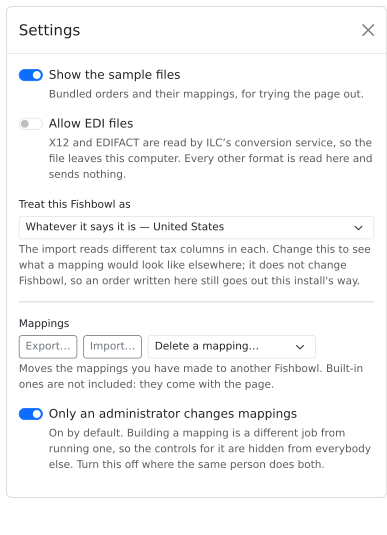
An administrator opens the settings with the gear control. The page stores them in plugin data, and they apply to every user.
| Setting | Default | What changes |
|---|---|---|
| Show the sample files | Off | Adds bundled example files and their mappings to the page. Use it to evaluate or to train. |
| Allow EDI files | Off | Permits X12 and EDIFACT. Reading one sends it to ILC's conversion service. Every other format is read in the browser. |
| Only an administrator changes mappings | On | Hides New mapping, Edit mapping and Delete from everybody else. Turn it off where the same person builds mappings and runs them. An administrator is never hidden from them. |
| Treat this Fishbowl as | Whatever the home country says | Changes which tax fields the page checks. It changes nothing in Fishbowl. Use it to build a mapping for another region. |
Who does which job
The page separates two jobs, and the guides follow the same line:
| Job | Who | Where it is written down |
|---|---|---|
| Build a mapping for a customer file | An administrator | This guide, under Building a mapping |
| Import today's orders with a mapping that exists | Anybody with page access | The user guide |
By default an operator never sees the mapping controls. Give them the user guide, and keep this one.
Moving mappings between installations
The settings hold Export…, Import…, and a list to delete one from. Export writes every mapping somebody has made to a JSON file. Built-in mappings are not included, because they come with the page.
Import reads that file back. Each mapping gets a new identifier. A mapping whose name is already in use gets a new name. Importing the same file twice therefore makes two mappings, and overwrites none. Import obeys the mapping lock.
Every mapping records the shape it was written in. The page brings an older one forward when it reads it, both from storage and from an imported file, and reports what it changed. A mapping written by a newer version of the page is refused rather than guessed at.
Two values are fixed and are not configurable:
| Value | Fixed at | Why |
|---|---|---|
| Orders per import call | One | Fishbowl refuses an order whole. One call per order isolates a failure to that order. |
| Customer PO length | 25 characters | The so.customerPO column holds 25. The page warns before it truncates. |
Change where the page appears in the CloudPages plugin page Edit dialog:
| Placement | Default |
|---|---|
| Path | Reports:ILC Products |
| Modules | None. Add the modules where order entry staff work. |
| Toolbar button | None |
Building a mapping
A mapping tells the page how one customer lays their file out. Build it once per customer, against a real file from that customer.
You need the file open. The wizard reads it as you work: you click a cell or a field and the page fills the mapping in. Open the file first, then press New mapping.
The seven steps
| Step | What it settles |
|---|---|
| Structure | Where the orders are. For a spreadsheet: the header row, the first line row, and where the lines stop. For JSON or XML: the path an order sits at. |
| Order | What fills each sales order field. |
| Lines | What fills each line. |
| Before | Whether to check that the order is already in Fishbowl, and on which field. |
| After | What happens once the order exists: a payment, memos, picking. |
| Preview | The orders the mapping makes, drawn the way Fishbowl will hold them. |
| Save | The name, the description, and the document. |
Where a value comes from
Each field takes one of these. The page offers only the kinds that suit the file you opened.
| Kind | Reads |
|---|---|
| Fixed value | The same value on every order. |
| From customer | The customer record in Fishbowl. |
| Column | A named column, once per line. |
| Cell | One cell of a spreadsheet, by reference. |
| Field | A named field in JSON or XML, by path. |
| EDI field | A segment and element in an EDI document. |
| Qualified id | An EDI value picked by its qualifier, not by its position. |
| Party | An EDI party picked by its code, not by its position. |
| One of a list | One entry of a repeating list. |
| Date | Another binding, read as a date and written the way this Fishbowl wants it. |
| Translate | Another binding, with its value looked up in a table you supply. |
| Calculate | Another binding, multiplied or divided by a factor. |
| Rule | The first rule that matches decides the value. |
A binding can wrap another. A date around a column is the ordinary case: read that column, and write it as a date.
One order or many
How many orders a file holds depends on the mapping, not on the file type.
- A spreadsheet or CSV. Name a header field under **Start a new order when this column changes**. A new order begins each time that value changes. Without one, the whole file is a single order.
- JSON or XML. The path under Where the orders are decides it. A path reaching a list makes one order per entry.
- EDI. One order per transaction.
Where a line's price comes from
Unit Price on the Lines step takes Ask Fishbowl as one of its kinds, alongside a column or a fixed value. Choosing it prices each line at what that customer pays for that product at that quantity, from the pricing rules.
Where the price does come from the file, a checkbox under the row offers to check it against Fishbowl anyway, and a line then reports when the two differ.
Leaving the price out of a mapping does not apply the pricing rules. An order imported with ProductPrice empty arrives at the product's base price. Measured on 2026-08-23: a product listing at 2.89, with a 25 percent break between quantity 200 and 500, imported at 2.89 for a quantity of 300 where the rule price is 2.1675. Asking Fishbowl is the only way a rule price reaches an imported line.
A mapping created before this choice existed keeps doing what it already did. A mapping that reads a price from the file continues to use the file, and one that does not now asks Fishbowl.
Rules worth knowing before you start
- The customer name must match Fishbowl exactly. The import creates a customer it cannot find. A typo therefore makes a customer record, not an error. The page matches the customer itself first, and refuses when it cannot. That is what stops it.
- A product must be found before the write. The import does not resolve a customer part number: it records it beside the line and nothing else. Map the part number and the page looks the product up through
customerparts. - A price that is not a number imports as 0.00. The page refuses it first. Leave a price empty to use the pricing rules instead.
- The import takes three statuses only: Estimate, Issued, Historical.
- Dates are written in this Fishbowl's format. Set the field kind to Date and the page handles it. Do not try to format the date in the mapping.
- Tax is not the same everywhere. A United States installation reads
TaxRateNameon the order andTaxableon a line. Every other installation readsTaxCodefor both. The page reads the home country and reports the mismatch, and Treat this Fishbowl as lets you build for another region.
The mapping document
The Save step writes what the mapping does as markdown: every field, where it comes from, and an example value from the file in front of you. Copy it or save it to a file.
It is written to be enough for somebody to build the same mapping in code. Send it with a support request about a mapping.
Troubleshooting
The page is not in the list of available pages
- Symptom: The plugin shows no Easy Order Importer.
- Cause: The repository has no commit, and the plugin cannot read a branch that does not exist.
- Fix: Commit the repository, then reload the plugin.
Every order says the customer does not exist
- Symptom: Each order reports "No active customer is named ...".
- Cause: The mapping fixes a customer name that does not match the Fishbowl record, or the customer is inactive.
- Fix: Open Edit mapping. Set the customer from the list, or correct the fixed value. The name must match exactly.
An EDI file will not open
- Symptom: The page reports that EDI is turned off.
- Cause: Reading X12 or EDIFACT sends the file to ILC's conversion service, and the setting is off by default.
- Fix: Open the settings and turn on Allow EDI files. If the customer does not permit the file to leave the network, ask the sender for a CSV.
Every date is refused
- Symptom: Each order reports that a date is not written as
MM/dd/yyyy. - Cause: The mapping reads the date as text, not as a date.
- Fix: Open Edit mapping. Set the field kind to Date. The page then writes the date in the format this Fishbowl expects.
The order imported but the payment did not
- Symptom: The sales order exists. The row reports a failed step after import.
- Cause: The payment method is missing, or the amount is zero.
- Fix: Record the payment in Fishbowl by hand. The page does not retry, because a second attempt could record the payment twice.
An order has no tax after an import
- Symptom: The order imported, and its tax is empty or wrong.
- Cause: The Fishbowl home country decides which tax columns the import reads. A United States installation reads
TaxRateNameandTaxable. Every other installation readsTaxCode. - Fix: Open Edit mapping and set the tax field the page reports as missing. The page names the right one for this installation.
A mapping file will not import
- Symptom: The settings report that the file is not a mapping file from this page, or that a mapping was written by a newer version.
- Cause: The file came from somewhere else, or from a later release of the page than this installation runs.
- Fix: Export again from the installation that holds the mappings. If the other installation runs a later release, update this one first. The page refuses a newer mapping rather than guessing at it.
New mapping and Edit mapping are disabled
- Symptom: The controls are gray, and hovering over one names the reason.
- Cause: Either no file is open yet, or Lock the mappings is on and the user is not an administrator.
- Fix: This is the expected behavior. Open a file, or turn the setting off. An administrator is never locked out by it.
Delete is disabled on a mapping that exists
- Symptom: A mapping is selected, and Delete stays gray.
- Cause: The mapping is built in. It is part of the page and returns on the next load.
- Fix: None. Only a mapping somebody made can be deleted.
A hundred orders take twenty seconds to import
- Symptom: A large file writes slowly, and the progress line counts up.
- Cause: The page sends one import call per order, so that a refusal stops at one order and leaves the rest untouched.
- Fix: None. This is the expected behavior. Measured at about 200 milliseconds an order.
Before a support request
The page has no debug control. To reproduce a problem:
- Open the settings and turn on Show the sample files.
- Load the sample closest to the customer file.
- If the sample works and the customer file does not, the mapping or the file is the cause, not the page.
Collect:
- The Fishbowl version and the page version.
- The order file, or a copy with the customer detail replaced.
- The name of the mapping.
- The text of the message the page reported, in full.
- The Fishbowl version and the home country.
- The browser console output.
- A screenshot of the page.