CloudPages · Sales
Sell by Area
Turn the area a customer needs into whole boxes, on the sales order
Type the square feet or square metres the job needs. The page works out the boxes and pallets from each product's own box size, prices the line for this customer, and adds it to the order.
What it's for
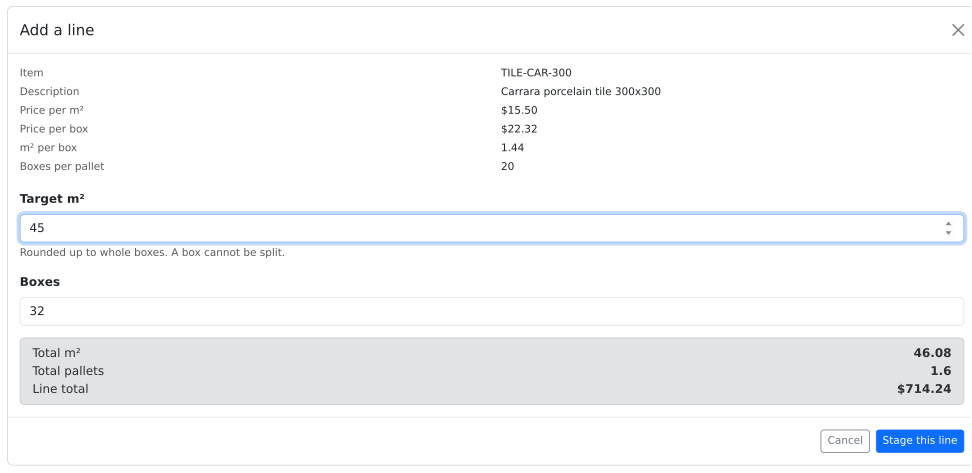
A customer asks for 45 square metres of a tile that comes in boxes of 1.44. A box cannot be split, so somebody divides, rounds up, works out what the boxes really cover, and counts the pallets.
The box size differs for every product, and it is rarely on the order screen. The arithmetic happens on a calculator, one line at a time. A slip means a short delivery, or a box the customer did not need.
What it does
- Works in the unit you sell in. Square feet or square metres, chosen once by an administrator. Start it from the sales order's toolbar.
- Rounds up to whole boxes. Type the area, or the box count. The page shows the area those boxes cover, the pallets, and the line total.
- Prices the line for this customer. Fishbowl's price for this customer goes on the line.
- Shows every change before it writes one. Lines are staged, reviewed, and only then added to the order. Each line reports back what happened to it.
- Records the box count. Each added line's note says how many cartons.
Use it for
- A counter sale for a room. The customer brings the measurements, and the order gets the boxes that cover them.
- A quote for a job with several products. Floor tile, wall tile, and trim, each with its own box size, on one order.
- A delivery to plan. See the pallet count before the order ships.
Good to know
- Box size and boxes per pallet come from two custom fields on the part or product. A blank counts as one. The settings can create the fields.
- One unit of area at a time. Square feet or square metres, set for the page. Each product is sold in that unit.
- It adds lines to a saved order. It does not change lines already on it.
- Adding lines needs the Create Sales Order right. Settings need the Administration right.